








Online Audio Reverser Tool
Reverse audio online. Open a file, trim the range if needed, turn on reverse export, and save the backward version directly in your browser.
오디오 거꾸로 재생 작업 공간
오디오 가공오디오 파일을 여기로 끌어다 놓거나 찾아보기
서버 업로드 없이 브라우저에서 모든 주요 오디오 형식을 안전하게 처리
Why Use It
Why This Audio Reverser Workflow Fits Quick Backward Exports
A focused browser workflow for people who want reverse audio without moving into a heavier desktop editor.
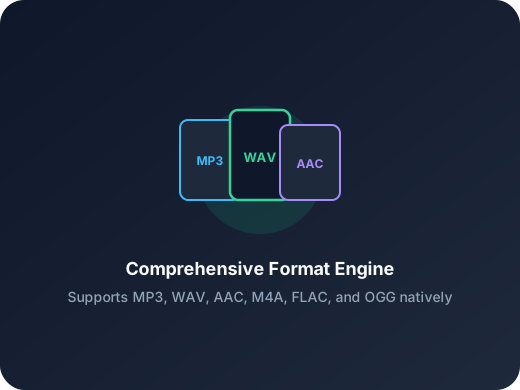
Reverse Export in the Same Editor
Upload one file, keep the full range or trim a section, then turn on reverse export from the same workspace.
Keep Trim and Format Controls Together
Select the exact range you want, choose the output format, and export the backward version in one pass.
Useful for Effects and Sound Design
A practical fit for transition sounds, reverse cues, stylized intros, and quick creative edits.
Create reverse transition sounds
Export a reversed section for risers, swells, and other transition effects.
Flip a short clip quickly
Take one selected phrase or audio hit and save a backward version without a full DAW workflow.
Reuse the same trim workflow
Keep the familiar editor, but use the reverse export toggle when the final file needs to play backward.
Three-step workflow
How to Reverse Audio Online
Export backward audio in three simple steps.
Step 1
Upload Audio
Choose an audio file such as MP3, WAV, M4A, AAC, FLAC, OGG, or WMA.
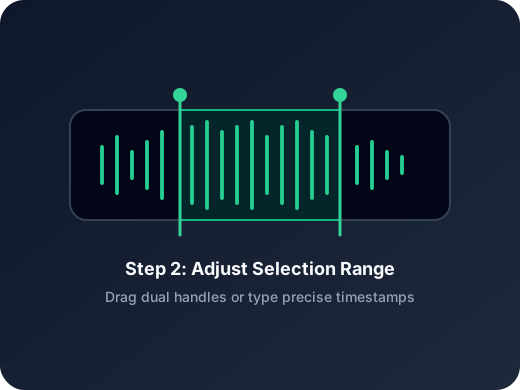
Step 2
Open Reverse Export
Adjust the range if needed, then turn on the reverse export control in the editor.
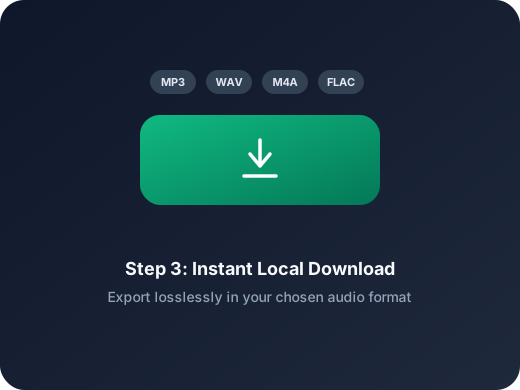
Step 3
Save the Backward Version
Export the reversed audio directly from the browser in the format you want.
더 많은 도구
다음 오디오 작업을 계속하세요
올바른 도구를 사용하여 추출, 병합 또는 계속 트리밍하세요.
MP3 커터
음악 클립, 벨소리 및 간단한 편집을 위한 빠른 인/아웃 지점 선택을 통해 MP3 파일을 다듬습니다.
오디오 추출
수업, 인터뷰, 녹음 및 콘텐츠 용도 변경을 위해 비디오 파일에서 깨끗한 오디오를 가져옵니다.
오디오 압축기
품질 사전 설정을 사용하여 MP3, WAV, M4A, AAC, FLAC, OGG 및 기타 오디오 파일을 더 가벼운 형식으로 압축합니다.
오디오 속도 변경기
온라인에서 오디오를 빠르게 하거나 느리게 하고, 타이밍을 확인한 뒤 새 버전을 내보낼 수 있습니다.
오디오 페이드 인/아웃
오디오에 페이드 인과 페이드 아웃을 적용해 갑작스러운 시작, 끝, 구간 전환을 부드럽게 다듬은 뒤 내보낼 수 있습니다.
오디오 변환기
하나의 공유 내보내기 작업 흐름을 통해 신속하게 비디오를 오디오로 변환하거나 오디오 형식을 전환하세요.
오디오 병합
챕터, 음성 섹션 및 일괄 정리 작업 과정을 위해 여러 오디오 트랙을 하나의 정렬된 파일로 결합합니다.
User Feedback
Why Users Open This Audio Reverser
A lightweight workflow for people who mainly need reverse output without extra production setup.
4.9/5
Creators, editors, teachers, and sound designers use it for quick reverse exports before delivery.
Fast setup
Open one file, enable reverse export, and save without extra steps.
Simple range control
Useful when only one selected section needs to be exported backward.
Mia Carter
Podcast ProducerHelpful when I need a short reversed cue for transitions and do not want to open a heavier editor.
Lucas Kim
Music TeacherI can flip a short example backward for lessons in just a couple of minutes.
Nina Patel
Content EditorThe reverse export toggle is straightforward. I trim the range, switch it on, and save.
Ethan Brooks
FreelancerUseful for quick sound design tasks when a client wants a reversed sting or intro.
Ready to Reverse Audio?
Upload a file, enable reverse export in the editor, and save the backward version right in your browser.
Trim the exact range first if you only need one section to be exported backward.
Support
Audio Reverser FAQ
Common questions about exporting reversed audio online.
What these answers cover
These answers explain how reverse export works, what files are supported, and how to save the backward result.
What does audio reverse do?
It exports the selected audio so the final file plays backward from end to start.
Can I reverse only part of the file?
Yes. You can trim the range in the editor first, then export only that selected section in reverse.
Does reverse change playback in the editor?
No. In this workflow, reverse only affects the exported file and does not change the live preview direction.
Which files can I open here?
You can upload common audio files such as MP3, WAV, M4A, AAC, FLAC, OGG, and WMA.
Do I need to install software?
No. The reverse export workflow runs directly in your browser.
Can I use this on mobile?
Yes. The page and editor are designed to work on modern desktop and mobile browsers.